
Google Analytics 4 (GA4) is a powerful but complex analytics tool. While it offers a wide range of data and insights, navigating and using the platform can sometimes be challenging. Here are some of the top GA4 questions in 2026 answered by a Google Analytics consultant.
How to Create a New Property in Google Analytics 4
A Google Analytics 4 account can contain up to 2,000 properties. To create a new GA4 property, go to Admin in your existing GA4 account, select Create, and then choose Property.
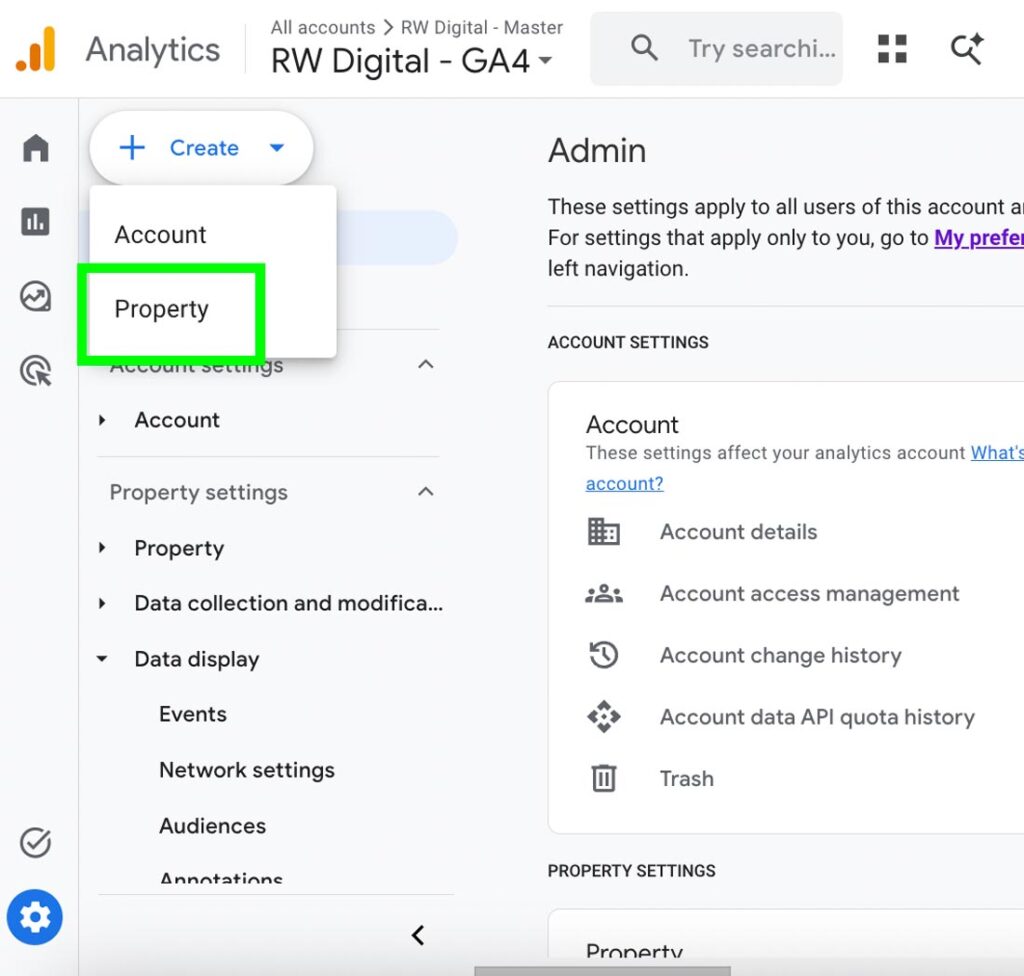
From there, you can create a new GA4 property.
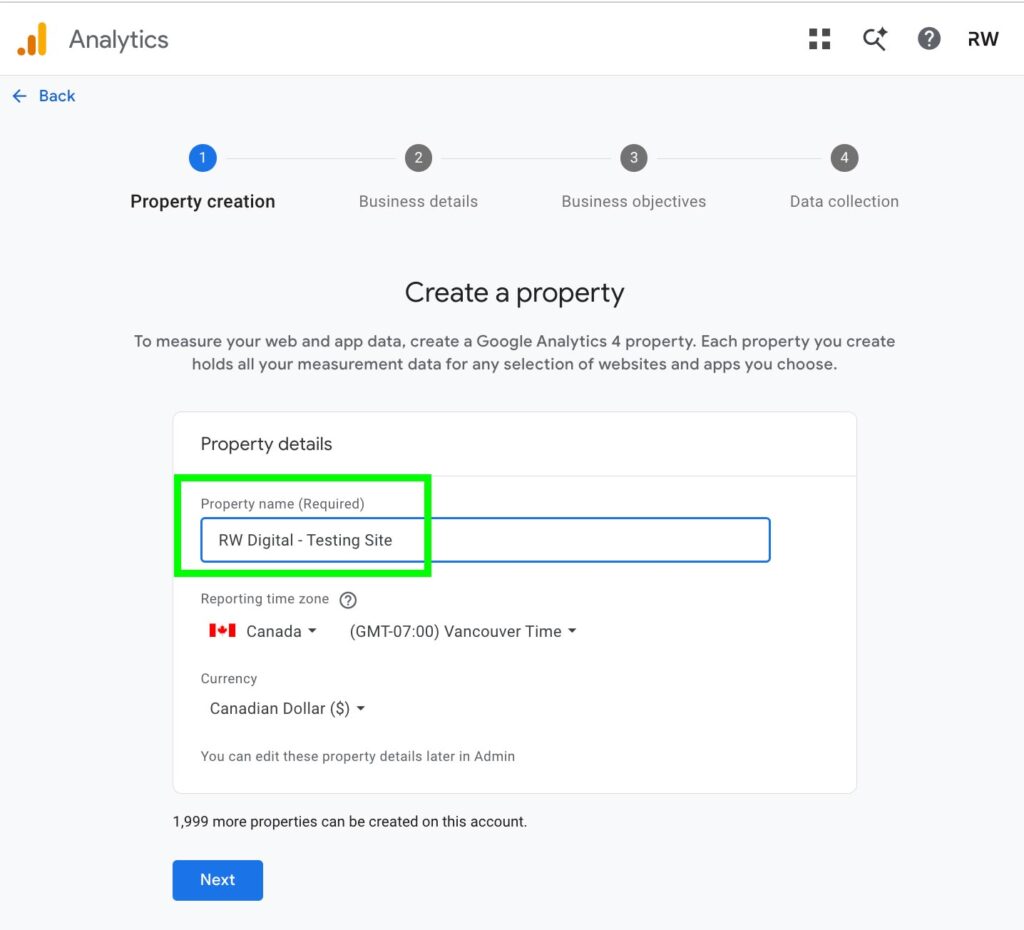
How to Block or Exclude IP Address in Google Analytics 4
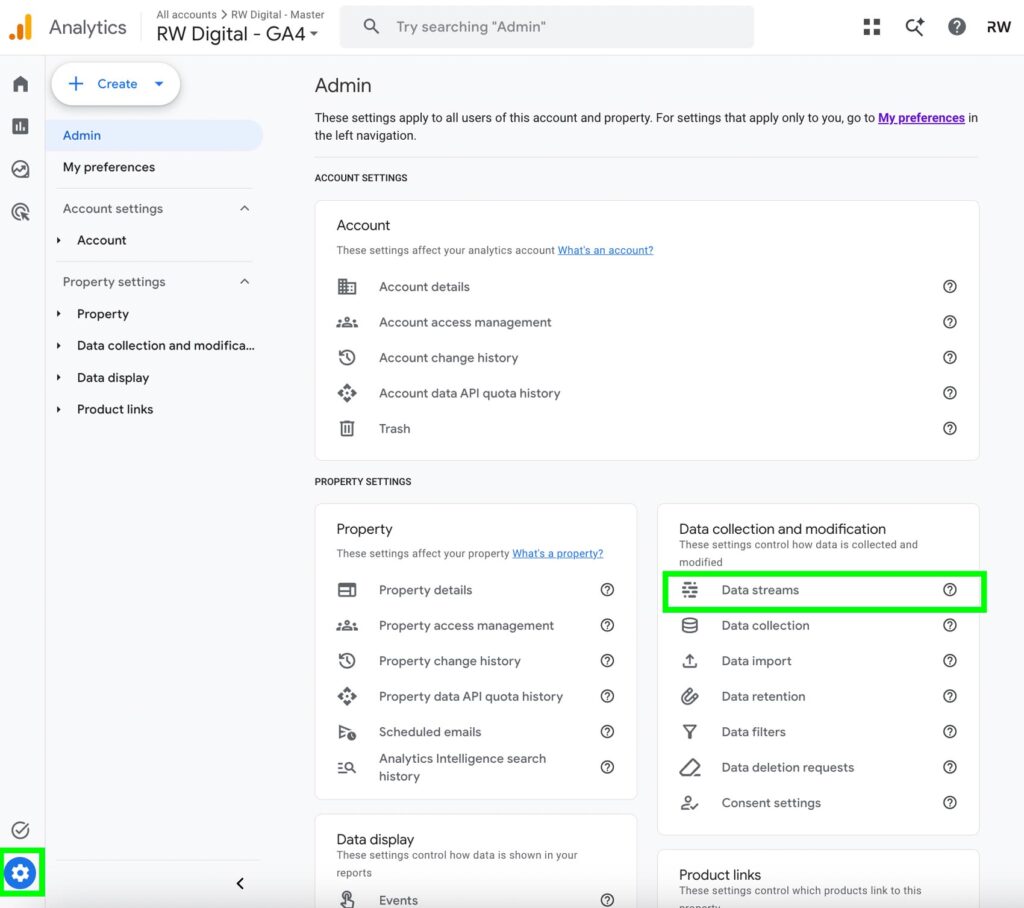
This is a multi-step process. First go to the admin section and click on data stream.
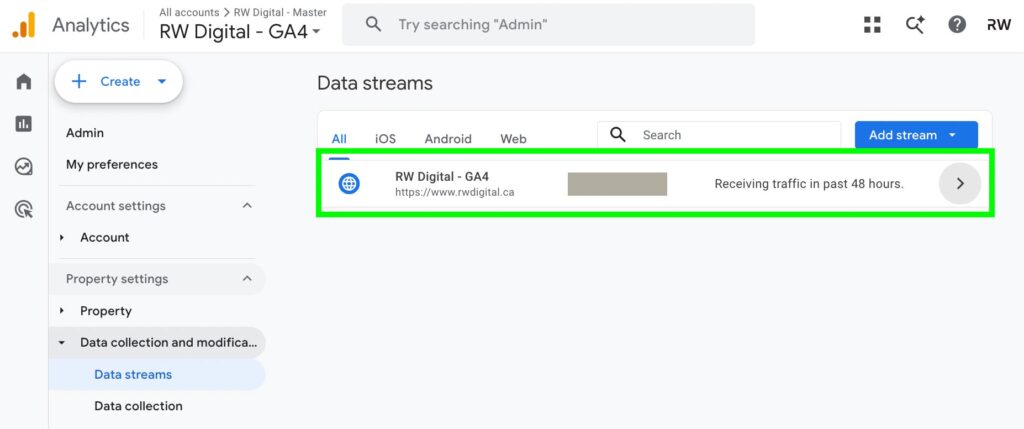
Select your data stream.
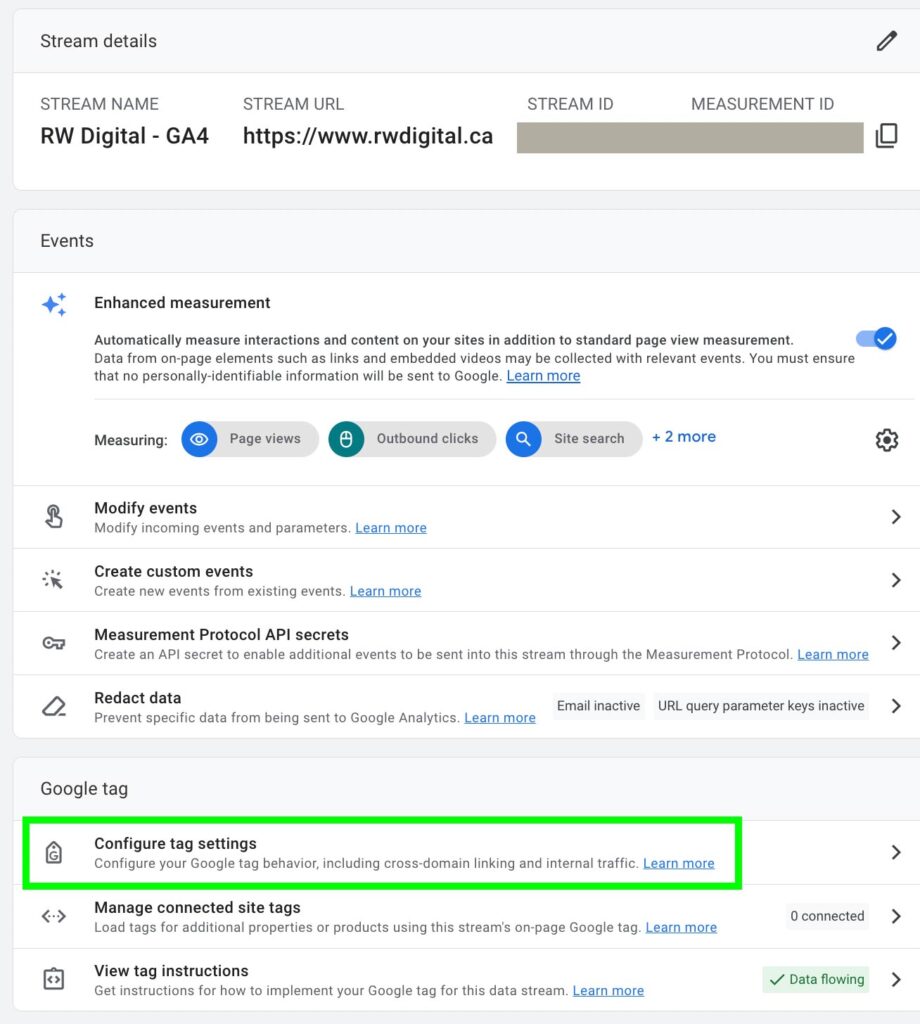
Select Configure tag settings
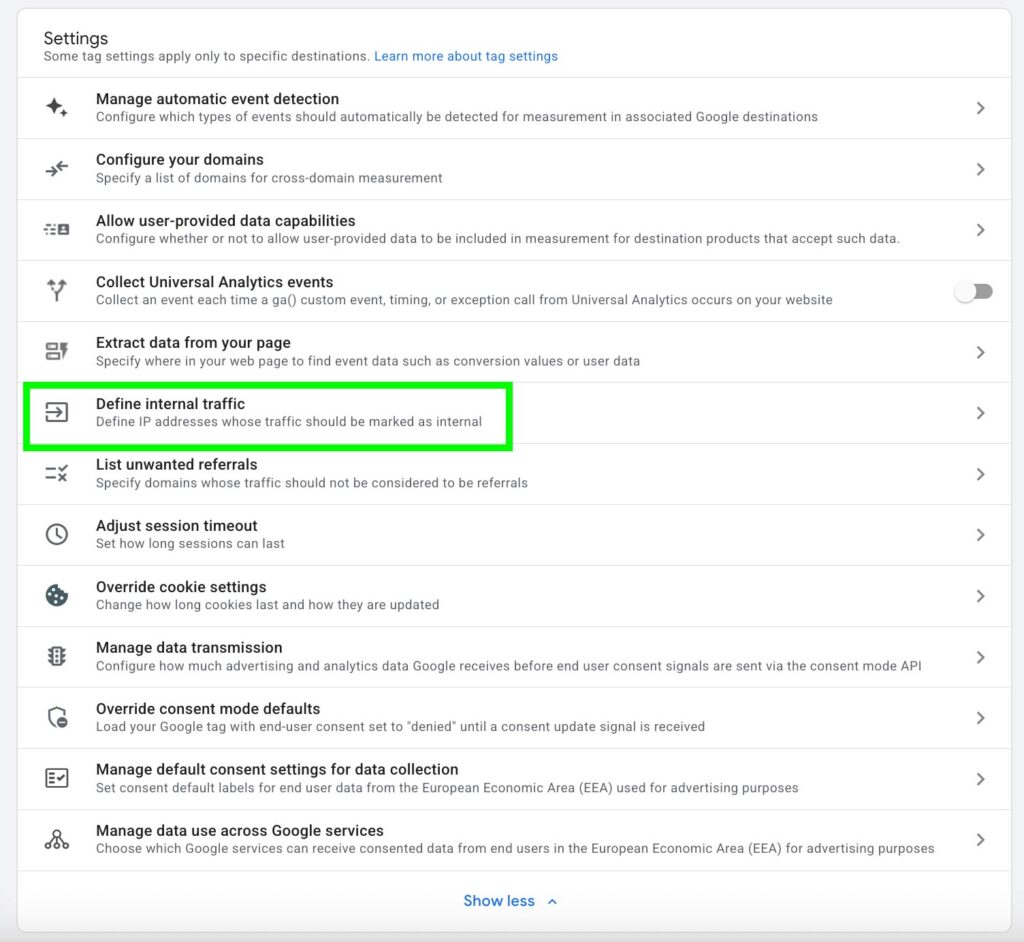
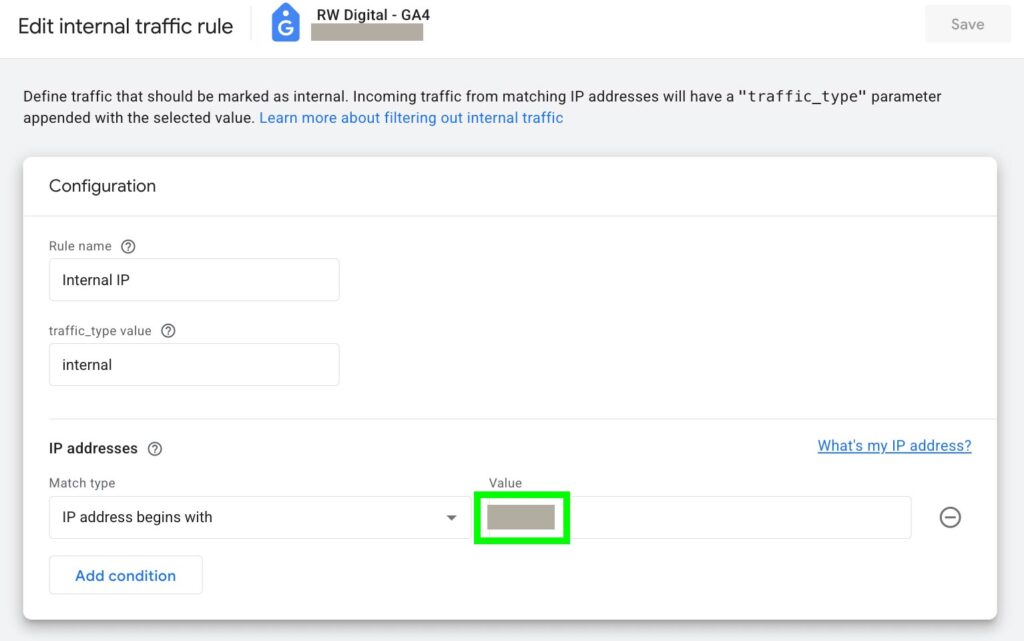
Go to Define Internal Traffic and enter the IP address that you want to exclude.
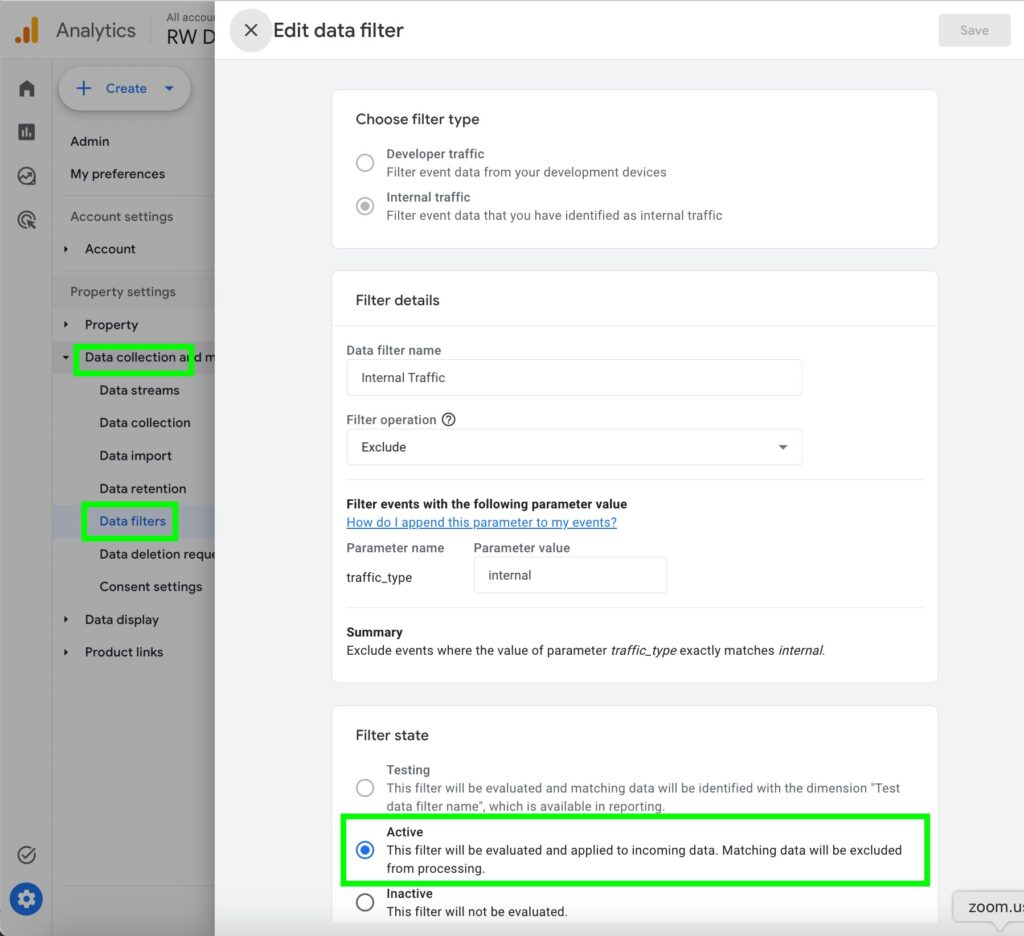
Once you’ve defined your internal traffic, go to Data Collection and Modification, select Data Filters, and then enable the internal traffic filter. Note that once the filter is set to Active, all traffic coming from the defined IP address will be permanently filtered out, and the data cannot be recovered. Make sure the IP address is correct and that you are only excluding traffic you want to block.
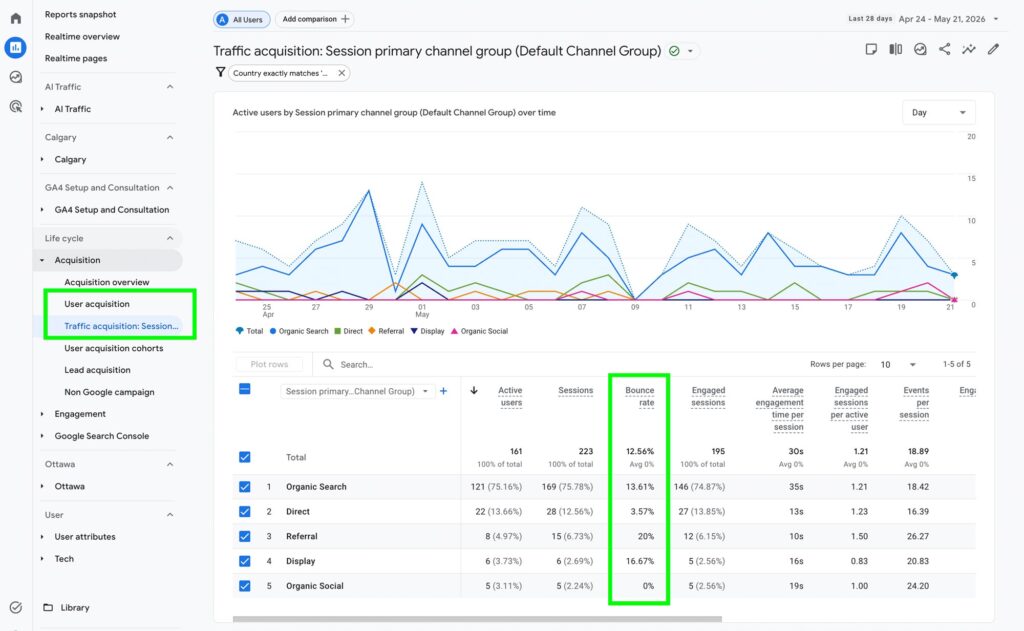
How to Find Bounce Rate in Google Analytics 4
The bounce rate metric can be found in the User Acquisition and Traffic Acquisition reports.
How to Find Measurement ID in Google Analytics 4
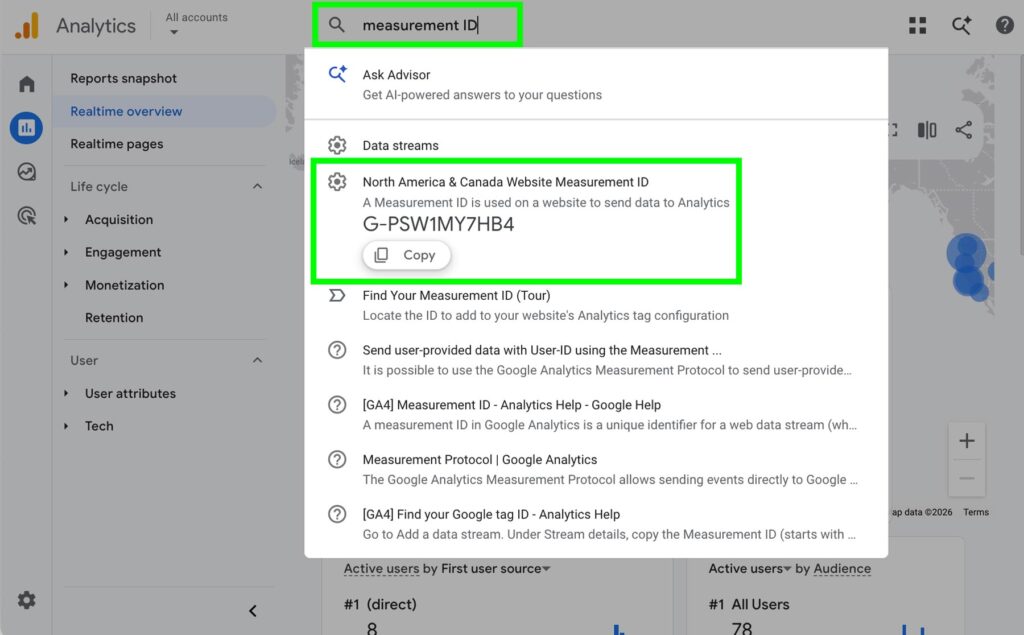
There’s now an easy way to find your Measurement ID in Google Analytics. Simply enter “Measurement ID” in the search bar at the top of the platform, and you can quickly find it right away.
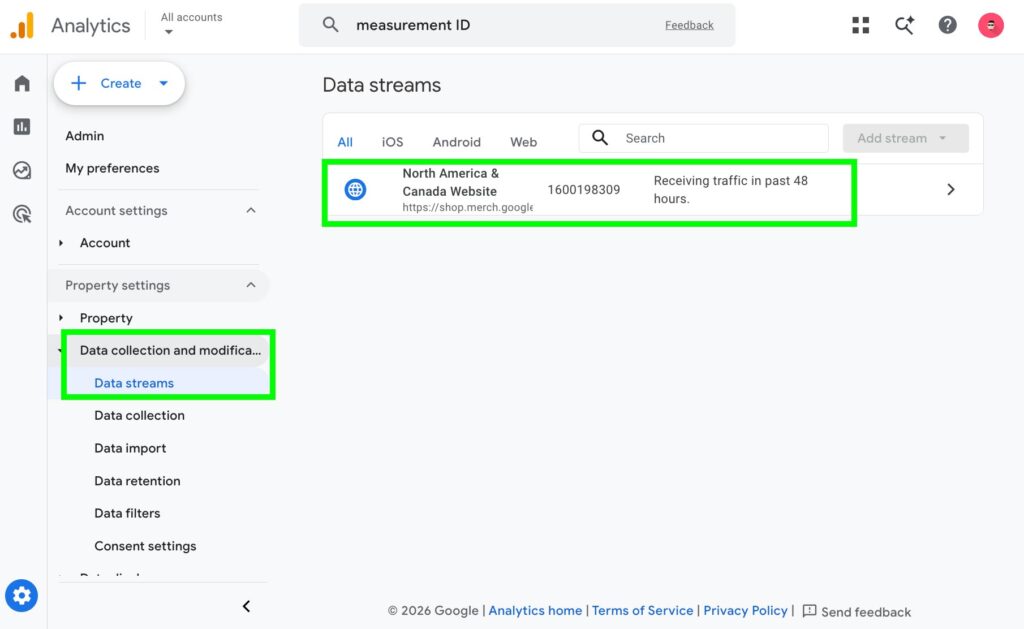
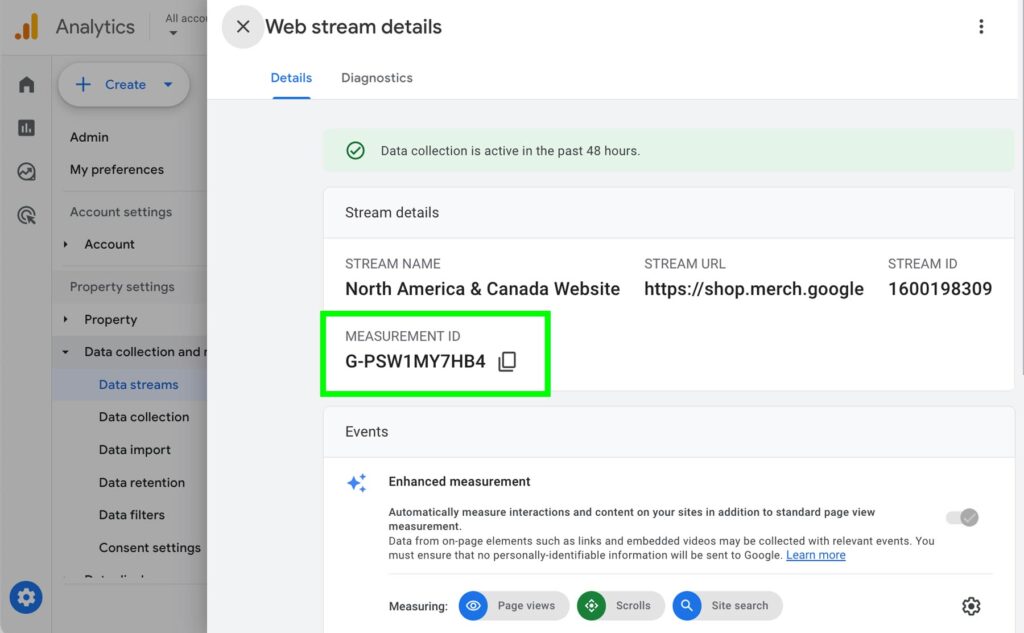
If you want to retrieve the Measurement ID the old-school way, go to Data Collection and Modification and select Data Streams. Then select your data stream to view the Measurement ID.
How to Find Returning Users in Google Analytics 4
By default, GA4 doesn’t show the number of returning users in standard reports. To see returning user data, you have to create a custom returning user audience.
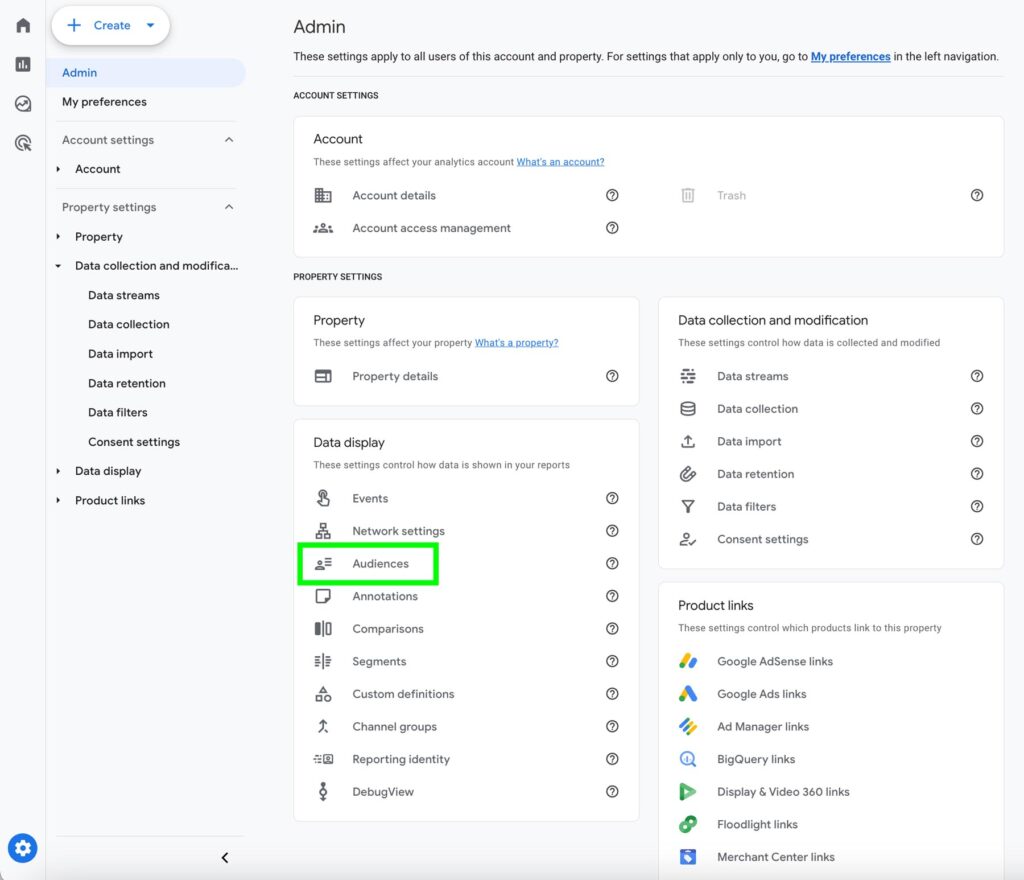
To do so, go to the admin section and click on Audience.
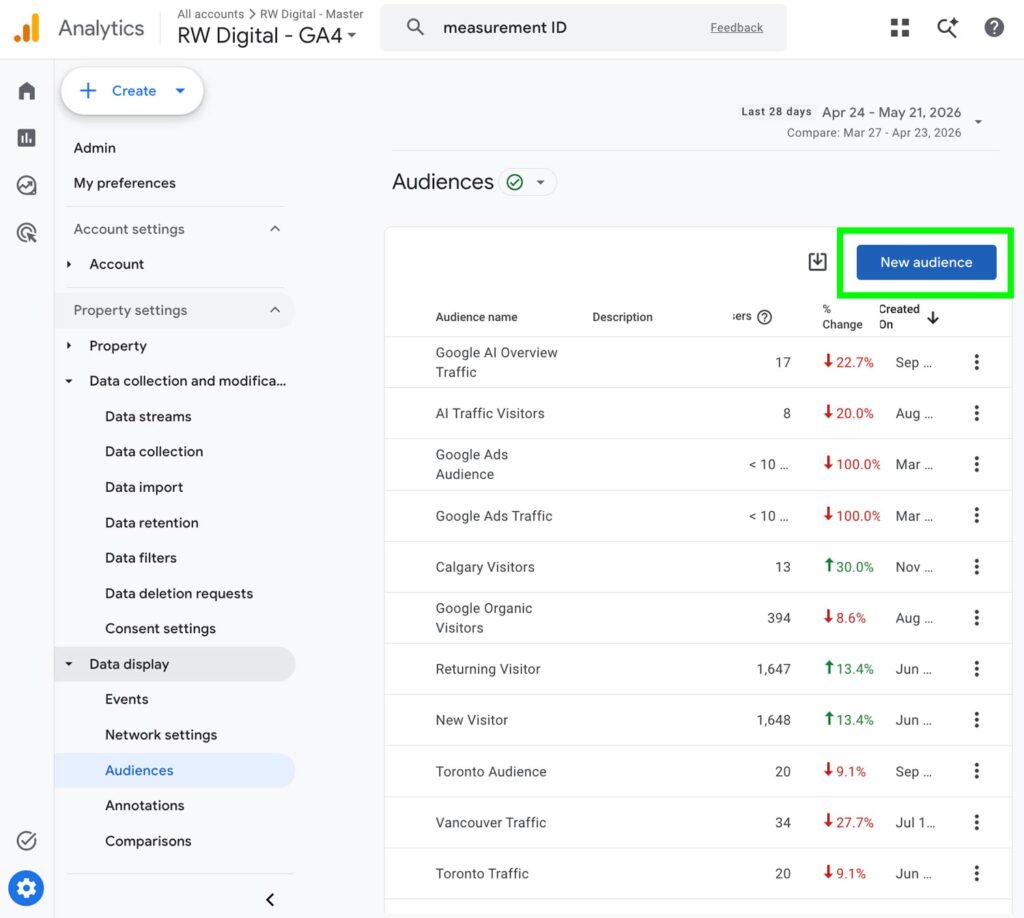
Then, click on Create Audience.
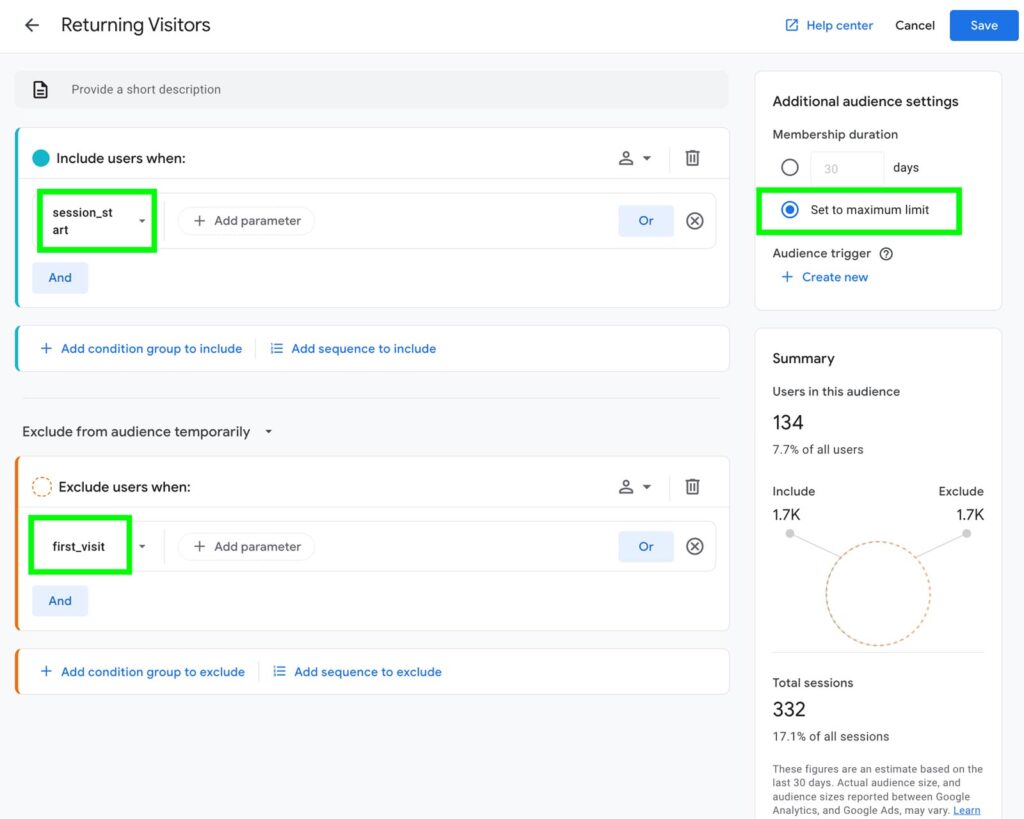
To create a returning visitor audience, include users who have triggered the session_start event and exclude users who have triggered the first_visit event. This ensures that the audience only includes users who have visited the website before and are not first-time visitors.
How to Give Access in Google Analytics 4
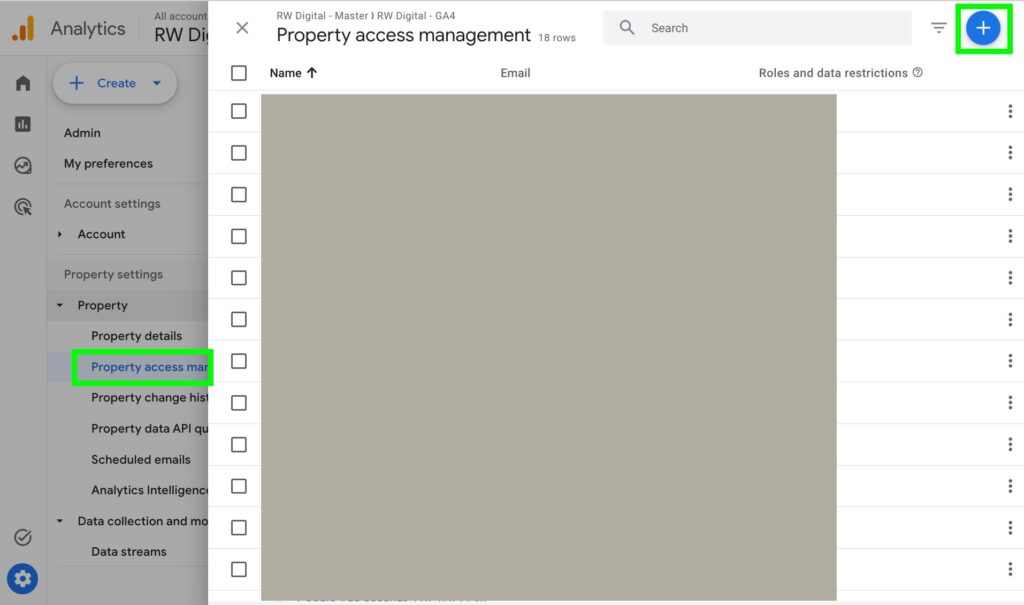
Go to the Admin section, click on Property Access Management, and then click the plus (+) icon to add users to your GA4 property.
How to Fix (not set) in Google Analytics 4
There are a number of reasons why “(not set)” appears in GA4. To some extent, it is inevitable due to privacy limitations and technological factors. However, there are several actions you can take to reduce the amount of “(not set)” data in your GA4 property.
- Link Google Ads with GA4. Go to Admin → Product Links → Google Ads Links and ensure your accounts are connected. Also make sure that auto-tagging is enabled so GA4 can properly read Google Ads data.
- Extend Session Timeout. By default, GA4 ends a session after 30 minutes of inactivity. If a user leaves your site open in a background tab, returns two hours later, and triggers an event (such as a scroll or click) without reloading the page, GA4 may start a new session. Since no new page_view event occurs, “(not set)” can appear in reports. To help reduce this issue, you can increase the session timeout from 30 minutes to 2–4 hours, or up to the maximum of 7 hours and 55 minutes.
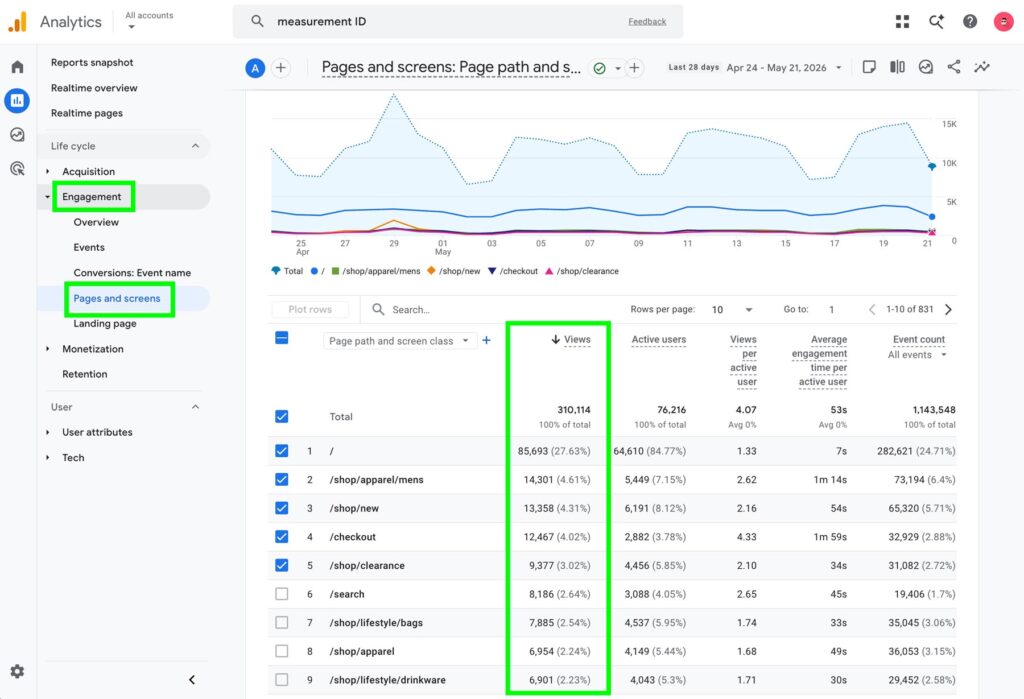
How to See Page Views in Google Analytics 4
Go to Engagement and open the Pages and Screens report to see the pageviews for your webpages.
If you have other questions about GA4, please feel free to get in touch and our Google Analytics consultant will be happy to help!