
Invalid clicks are clicks on your Google Ads marketing campaigns that don’t come from genuine user interest. They generally consist of intentionally fraudulent traffic, as well as accidental or duplicate clicks.
A few examples of what Google Ads might consider invalid clicks include:
- Manual clicks intended to increase your advertising costs or the profits of website owners hosting your ads.
- Clicks generated by automated clicking tools, bots, or other deceptive software.
- Accidental clicks that provide little or no value to the advertiser, such as the second click of a double-click.
Fortunately, advertisers aren’t charged for invalid clicks or impressions identified by Google Ads because they provide little or no value. These invalid interactions can waste advertising budgets and negatively impact campaign performance.
When Google determines that clicks are invalid, Google Ads automatically attempts to filter them from your reports and billing so that you aren’t charged. If you’re concerned about invalid clicks on your campaigns, you can monitor invalid click activity and any associated credits directly within your Google Ads marketing account.
How to View Invalid Click Activity in Google Ads
To monitor invalid click activity:
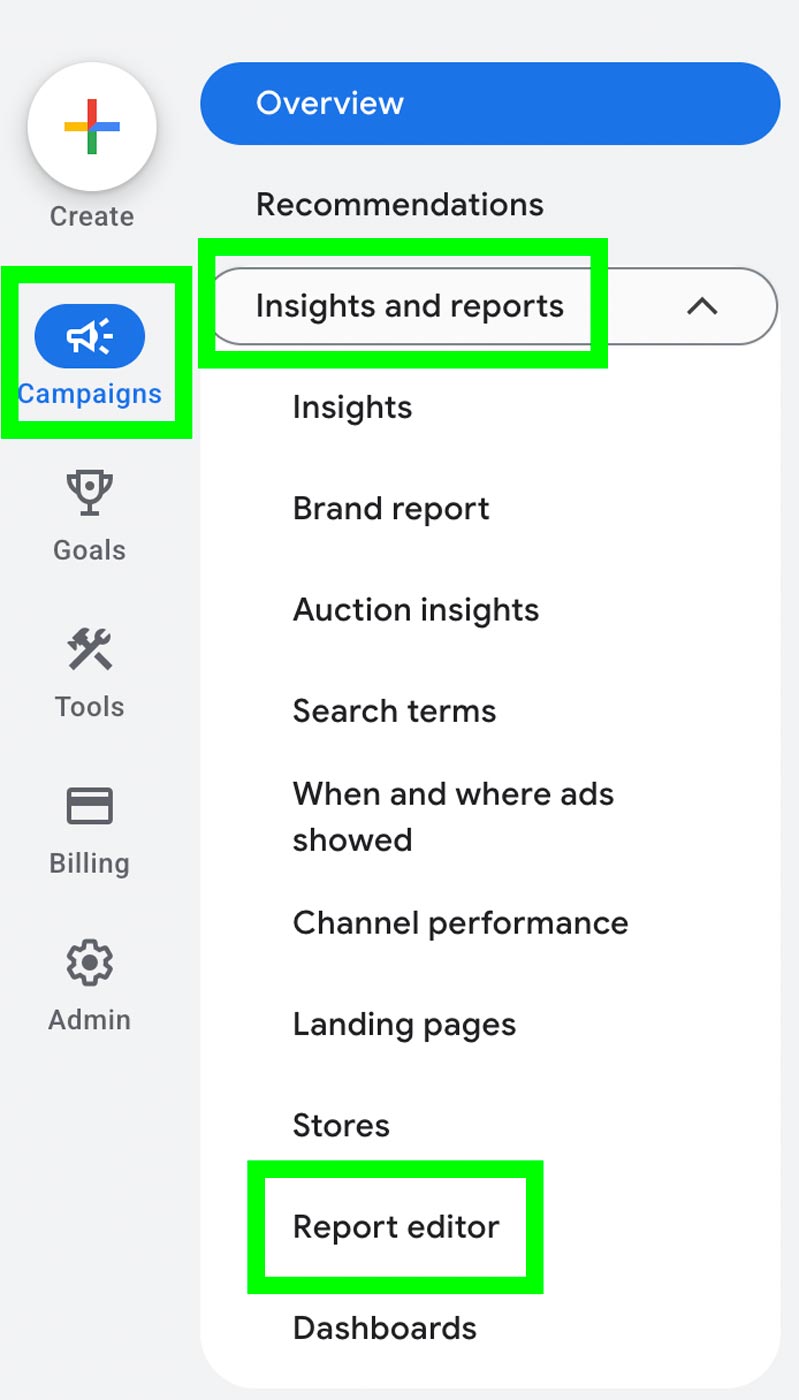
- Go to Campaigns and Select Insights and reports. Open Report editor.
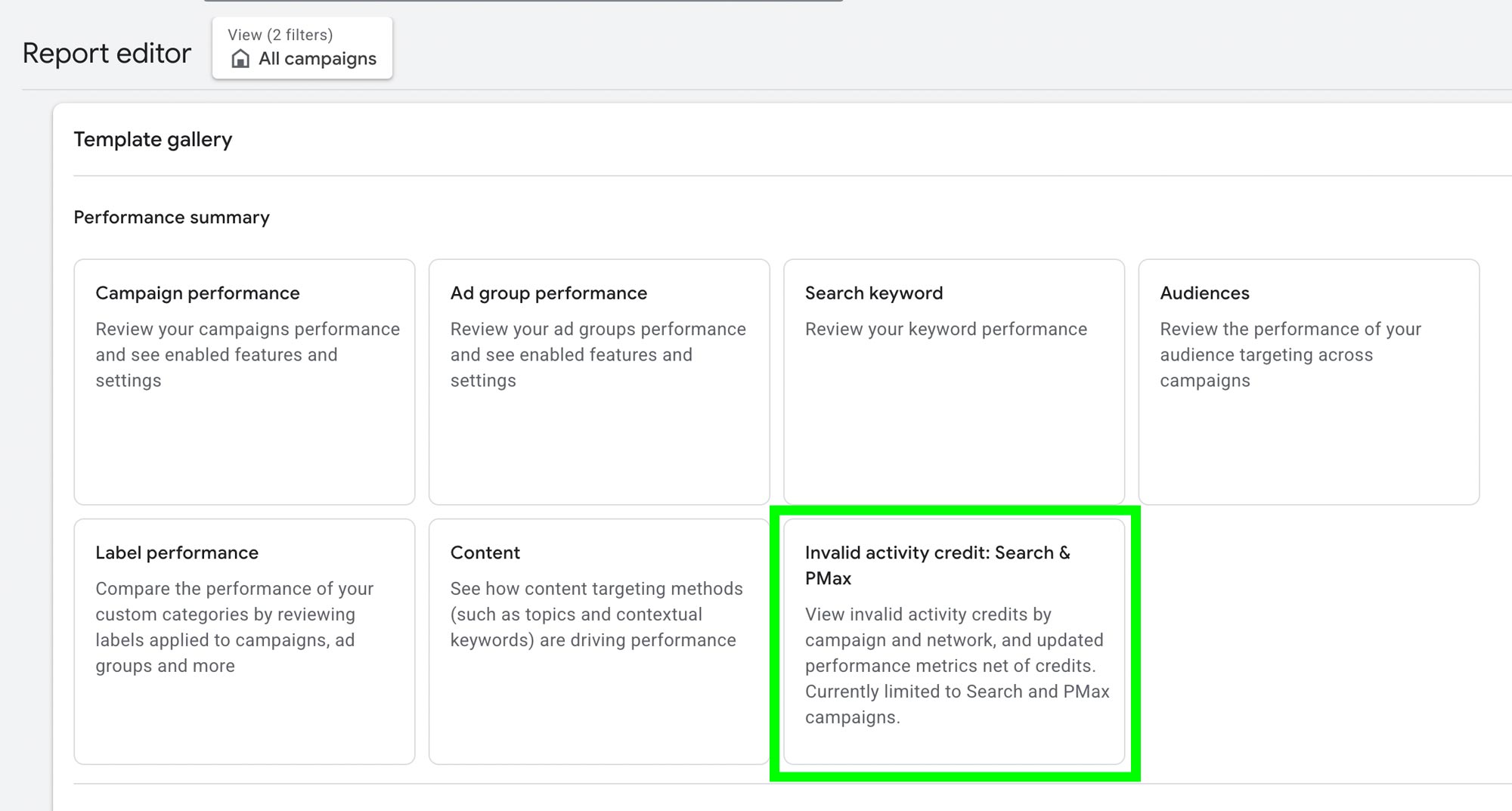
- Search for and select the Invalid activity credit report.
From there, you can view the number of invalid clicks, invalid click credits, and your invalid click rate for a selected time period.
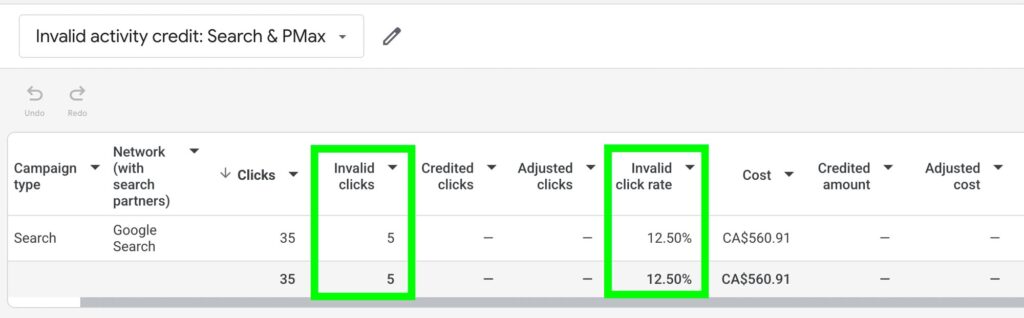
If your invalid click rate is consistently around 30% to 40% or higher, it’s generally a red flag and may be worth investigating and taking steps to reduce invalid traffic.
How to Minimize Invalid Clicks in Google Ads
While Google Ads automatically filters many invalid clicks, there are additional steps you can take to help minimize fraudulent or low-quality traffic.
Block Specific IP Addresses
If you’re using website security software that detects malicious activity from specific IP addresses, consider excluding those IP addresses from your Google Ads campaigns.
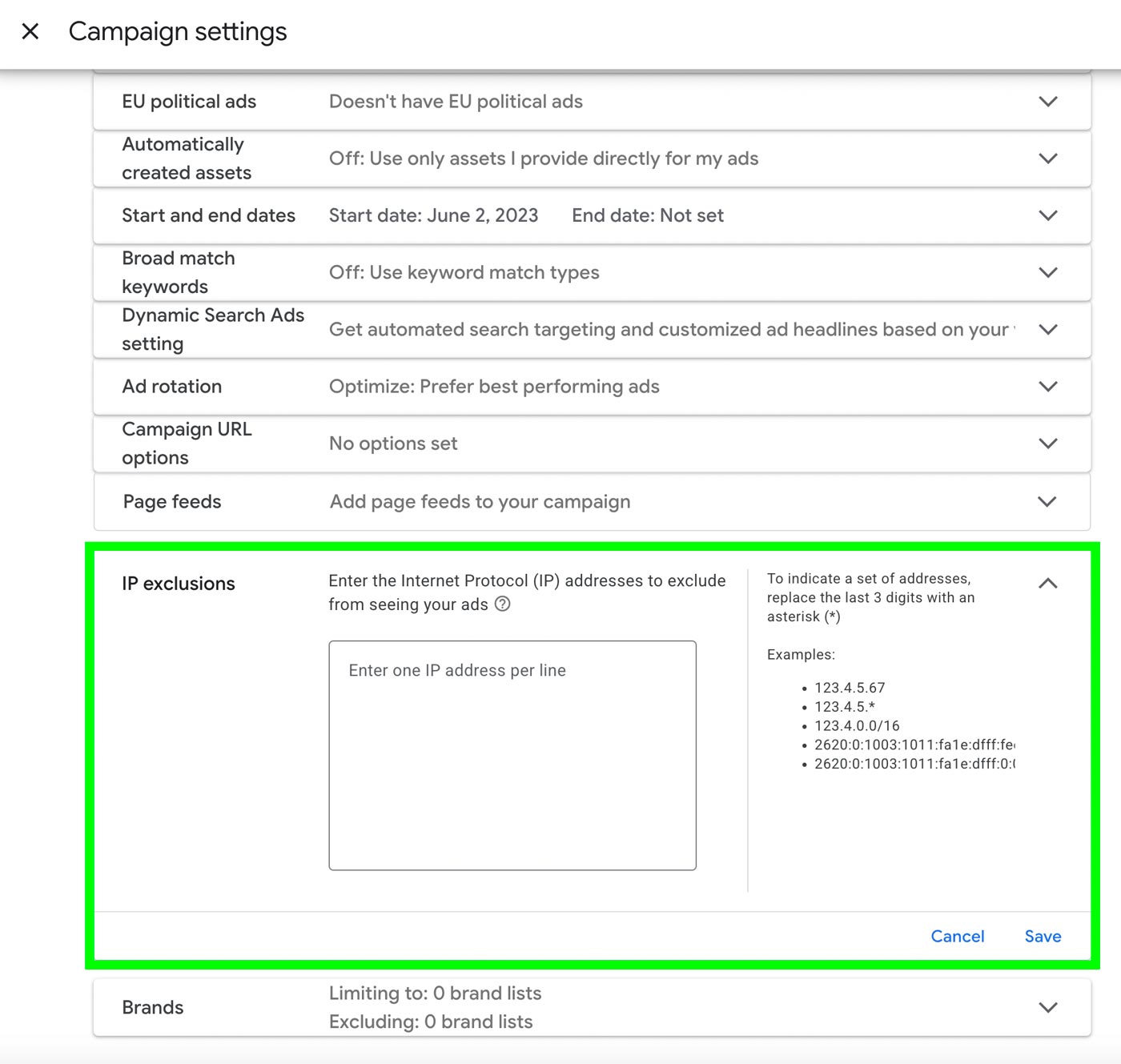
To exclude IP addresses:
- Go to Campaign Settings.
- Select IP Exclusions.
- Enter the IP addresses you want to block.
This can help prevent known malicious users from repeatedly clicking on your ads.
Block Traffic from Certain Countries
If your website security software identifies suspicious or malicious traffic originating from specific countries, you may want to block access from those countries altogether.
Country blocking is typically implemented through your website security software, your hosting provider, or server-level security settings. Since we aren’t an IT security company, we recommend consulting your IT team or website security consultant if you need assistance.
For WordPress websites, the premium version of Wordfence allows you to block traffic from selected countries, which can be an effective way to reduce malicious website activity.
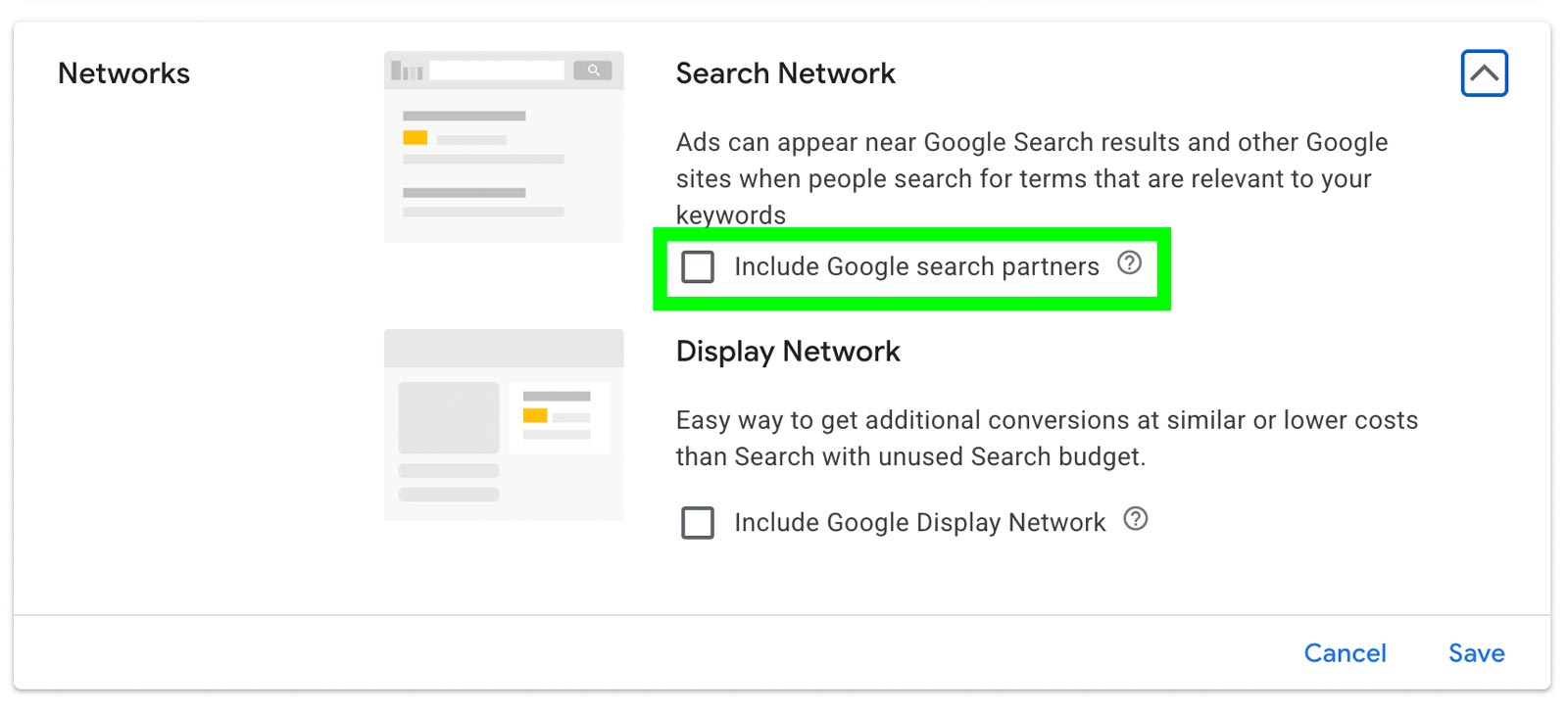
Disable Google Search Partners
Based on our experience and industry research, Google Search Partners can sometimes generate a higher volume of low-quality or fraudulent traffic compared to Google Search.
Many advertisers have reported receiving large numbers of clicks from Google Search Partners with very little engagement, high bounce rates, and low conversion rates.
We recommend not including Google search partners in your network for your Google Ads marketing campaign.
Invalid clicks are an unfortunate reality of online advertising, but Google Ads does an excellent job of identifying and filtering most invalid activity before you’re charged.
That said, it’s still a good idea to monitor your invalid click reports regularly, especially if you notice unusually high click volumes, low engagement, or poor conversion rates. By reviewing your invalid click activity, blocking malicious IP addresses when appropriate, strengthening your website security, and carefully evaluating whether to use Google Search Partners, you can help protect your advertising budget and improve the overall quality of your campaign traffic.